

You can organize CarPlay apps from your iPhone before a journey. Put the apps you use most near the beginning, remove optional apps you do not want on the display, and prepare your destination while parked. A new wireless adapter is not required just to change the arrangement of app icons.
If your current CarPlay screen feels crowded, start with the screen rather than buying another accessory. This guide is about making an existing compatible CarPlay setup easier to navigate. It does not change which vehicles or phones support CarPlay, and it is not an Android Auto walkthrough.
Start with the correct vehicle
On your iPhone, open Settings, then General, then CarPlay, and select the vehicle you use. Open the app arrangement controls for that vehicle. The wording can vary with your iOS version.
Apple's guide to rearranging CarPlay icons explains how to reorder apps and add or remove supported optional apps. Follow the controls shown on your phone; not every built-in item can be removed.
If you have used rental cars or more than one family vehicle, check the selected vehicle name before editing. Changing the wrong profile makes it appear as if your changes have not worked when you next connect.
Build around the journey you actually make
Write down the three things you normally need before leaving: perhaps directions, your preferred audio app and a way to make a planned call. Use that short list to decide what belongs near the front of the app layout.
For a familiar commute, your useful setup may be very different from a weekend trip. There is no universal perfect arrangement, and an app does not need a prominent position simply because it is installed on the phone.
For example, if you normally listen to one audio service, put it ahead of services you rarely open. If you have several navigation apps, make the one you actually use easy to find. Keep an occasional travel app available without making it the first thing you see every morning.
Separate screen clutter from connection problems
Reordering icons will not repair a dropped wireless connection, an incompatible vehicle system or a faulty cable. Test those separately so you do not change several things at once and lose track of the cause.
If CarPlay connects normally but you dislike the arrangement, stay with app settings. If it does not connect at all, return to the vehicle instructions and compatibility requirements before adjusting the layout. If a connection works only intermittently, describe exactly when it fails rather than assuming that a different screen layout will help.
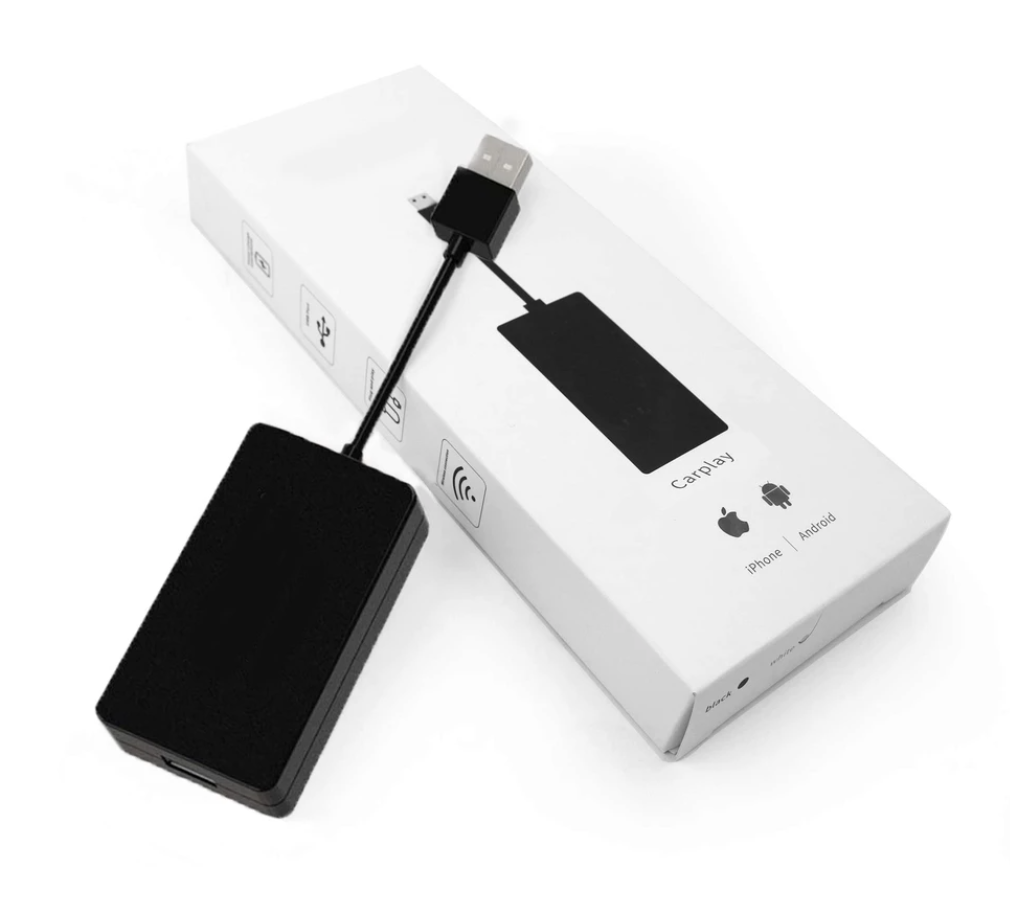
Car Accessories Deals carries a wireless CarPlay and Android Auto adapter. An adapter is a separate hardware purchase: review its current compatibility information for your vehicle and phone. The app-organization steps in this guide are not a claim that the adapter adds CarPlay to every car.
Finish the setup while parked
Once the apps are arranged, connect in a safe parking location and confirm that the expected icons appear. Enter your destination, choose the audio you want and set a comfortable volume before moving.
If a passenger will help during the journey, agree on what they will handle. Otherwise, leave nonessential changes until the next safe stop. A simpler screen is still a screen; organizing it does not make continuous interaction appropriate while driving.
After a few journeys, make one adjustment based on what you actually reached for. Avoid rebuilding the whole layout every day. A familiar arrangement is useful precisely because you already know where things are.
Start with that five-minute parked setup before shopping for more equipment. You may find that the system already does what you need, and the missing piece was a better arrangement rather than another device.
Related guide: Does This CarPlay Adapter Work With My Car?.